Setup Tutorial
This tutorial shows how to set up a training session with standard setup. For a quick tryout, consider the Quickstart Demo.
Overview
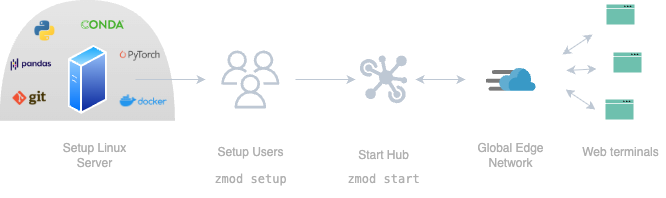
You start with a single Linux server populated with the tools and data needed for your training. ShellRoom’s standard setup leverages Linux’s native user management, creating a dedicated system account for each user.
Starting the training session with shellroom start provides a link to a web terminal.
Users authenticate using /bin/login and then join the training session.
Steps
Create a users file
The users file is a simple text file specifying your users, roles and passwords.
harry,lumos
ron,lumos
neville,lumos
luna,lumos
lupin*,lumos
snape*,lumos
Users with an asterisk * get the trainer role, others get the participant role.
In this example, all users get the same password lumos.
For more information, see Users file.
Setup the training environment
First, download ShellRoom using curl -sSf https://lterm.eu/get | sh.
Then setup the training environment with the users file
./shellroom setup --users-csv my-users.csv --skeleton-copy-dir ~/my-course-dataThis will
- Install shellroom to
/usr/local/bin/. - Create a system user for each entry in the users file.
- Modify each users
.bash_profileto join the training after login. - Optional: Copy the files in
~/my-course-datainto each users home folder and change their ownership.
More details can be found at setup command.
Start the training session
shellroom start --users-csv my-users.csv --subdomain my-cool-courseThis will start a new training session.
A dashboard shows you related information and settings, including the current users and a web terminal link that you can share with your users.
To request a specific URL with the --subdomain option, you need to create an account and set the ZM_AUTHTOKEN environment variable.
This agent process needs to run for the whole training.
It can run as a daemon in the background.
Press Ctrl + D to detach, moving the process to the background.
To re-connect later, run shellroom start again.